ScribeNote Login Access, Reset Help, and Security
ScribeNote login is the sign-in process used to reach an authorized ScribeNote workspace. The safest route is to begin from ScribeNote’s official website or the invitation, bookmark, or app link provided by your clinic or administrator. Enter the email address associated with your account and your password, then complete any additional verification step that appears.
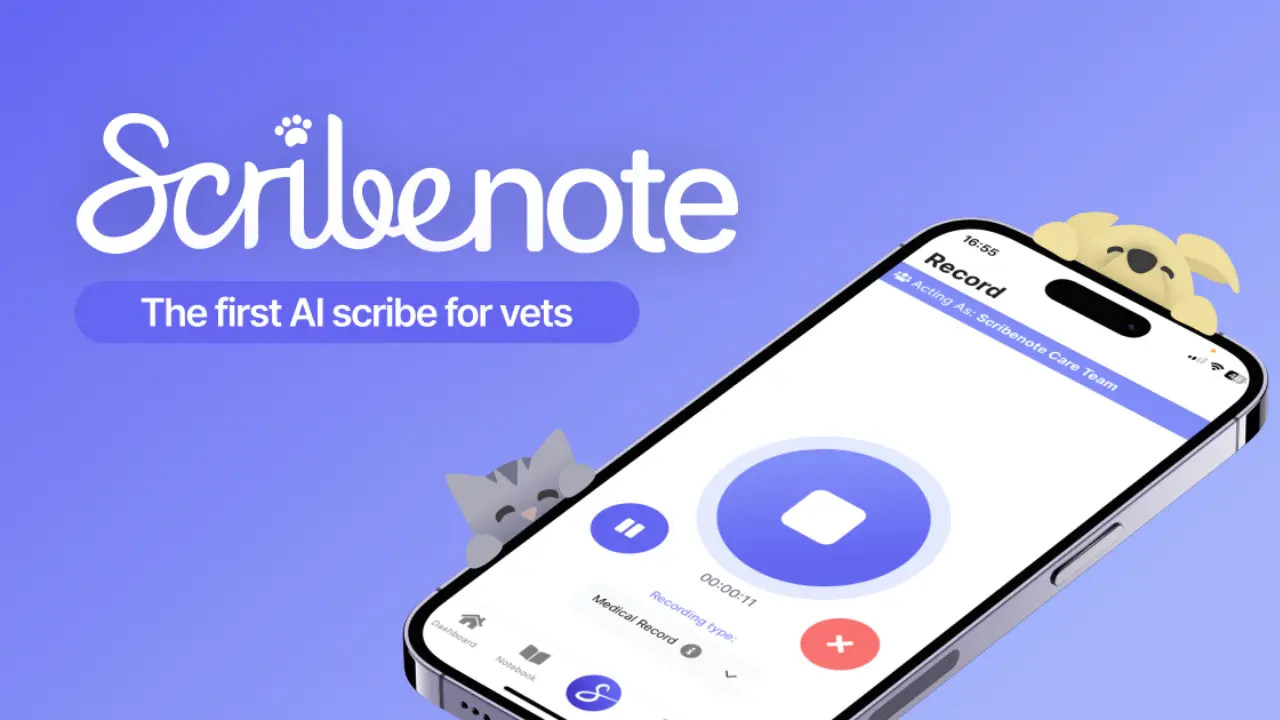
ScribeNote is commonly used in veterinary settings to help turn conversations and clinical details into documentation. Access can depend on how a practice has set up its account, so the sign-in page, identity provider, and available features may differ between organizations.
How to sign in to ScribeNote
Go to the official ScribeNote sign-in page, then use the credentials assigned to you. Avoid logging in through links in unexpected emails, text messages, or pop-up messages.
- Open a current browser and visit ScribeNote through its official site or your practice-approved link.
- Select the sign-in option.
- Enter your work email address carefully.
- Enter your password, or choose the single sign-on option if your organization uses one.
- Complete multi-factor authentication if prompted.
- Confirm that you have reached the expected workspace before opening or creating any records.
If you work at more than one location, make sure you are in the correct organization or workspace. A successful sign-in does not always mean that the intended clinic, user role, or patient list has loaded.
Chaturbate Ebony Profiles And Live Cam Info
Use the correct account details
Most sign-in failures come from a small mismatch: an old password, a mistyped email address, or an attempt to use a personal address instead of the work address on file. Copying a password from a password manager can help, but check that it has not added a space before or after the text.
Some practices may provide access through a centralized identity system rather than a separate ScribeNote password. If a button such as “Continue with SSO” appears, use the method your administrator directed you to use. Do not create a second account to work around an access problem; it may leave you outside the practice’s approved workspace.
Forgot your ScribeNote password?
Use the password-reset option on the official sign-in page. Enter the email address tied to your account and follow the instructions in the reset message.
A reset email can take a few minutes to arrive. Check your spam, junk, promotions, and quarantine folders, especially if your clinic uses strict email filtering. If no message arrives, confirm that you used the correct address. Your account may instead be managed through single sign-on, or an administrator may need to activate or update your access.
Jameliz Erome Age, Career, Income And Lifestyle
Choose a safer replacement password
Use a long, unique password that is not reused on another website. A password manager can generate and store one securely. Never share a password or one-time verification code with another person, even if they claim to be from support.
| Problem | What to try |
|---|---|
| “Incorrect email or password” message | Retype the email and password, check Caps Lock, then use the official password-reset process if needed. |
| Reset email does not arrive | Wait briefly, check filtered folders, verify the email address, and ask the account administrator whether your access is active. |
| Verification code is rejected | Request a new code and enter the newest one promptly. Check that the device clock is set automatically. |
| Page keeps loading or returns to sign-in | Refresh the page, try a private browsing window, clear site data if appropriate, or test another supported browser. |
| Account is locked or access is denied | Stop repeated attempts and contact the person who manages your organization’s ScribeNote access. |
| Single sign-on does not work | Sign out of the wrong work account in the browser, then retry with the organization-approved account or contact IT support. |
Browser extensions that block scripts, cookies, or pop-ups can interfere with authentication. If you are using a private device, a private browsing window is a quick way to test whether stored browser data or an extension is causing the issue. Do not disable security controls required by your workplace without approval.
Why you may not see your workspace after signing in
Being able to authenticate is different from being authorized to access a specific workspace. Your organization may need to assign a role, connect you to a clinic, or enable your account before records and documentation tools appear.
This is especially likely for new staff members, people changing roles, contractors, or users who recently changed their email address. Contact the practice administrator with the email address you used and a clear description of what you can see. Do not include patient details in an ordinary support request unless your organization’s approved support process specifically allows it.
Keep your account and clinical information secure
Veterinary notes and client information deserve the same care as other sensitive workplace data. Secure sign-in habits reduce the chance that another person can access a shared or unattended device.
- Use an individual account rather than shared credentials.
- Turn on multi-factor authentication when your organization offers or requires it.
- Lock the computer or mobile device whenever you step away.
- Sign out at the end of a session on shared devices.
- Use trusted networks where possible; follow your practice policy for remote work.
- Review the website address before entering credentials, particularly after receiving an email link.
- Report suspicious sign-in messages or unexpected password-reset emails to your administrator or approved support channel.
Do not save a password in a public or shared browser. A reputable password manager is generally safer than a browser profile others can open.
When to contact your clinic administrator or support
Contact your clinic administrator first if you are new to the platform, cannot find the right workspace, need a role changed, or aren’t sure whether your practice uses single sign-on. They can often confirm the email address and access method associated with your organization.
Use the official support route when the sign-in page is unavailable, a reset process repeatedly fails, or a technical error continues after basic browser checks. Share only the information needed to identify the account and explain the issue. Screenshots can be useful, but review them carefully to avoid exposing passwords, verification codes, patient information, or other confidential details.
Frequently Asked Questions
Where is the official ScribeNote login page?
Start from ScribeNote’s official website or a link supplied by your practice. This helps you avoid imitation pages and outdated bookmarks.
Can I use my personal email address to sign in?
Use the email address assigned or approved by your organization. A personal address will not work unless it is the one linked to your account.
Why does the password reset link not work?
Reset links may expire, and a newer request can invalidate an earlier email. Request a fresh link from the official sign-in page and open the newest message. If it still fails, ask your administrator whether your account is managed through single sign-on.
What should I do if I am locked out after several attempts?
Stop trying passwords repeatedly. Use the official reset option if available, then contact your practice administrator or approved support channel if the account remains locked.
Can multiple staff members share one ScribeNote account?
Individual access is generally safer for security, accountability, and role management. Follow your organization’s account policy and ask an administrator to create or restore the right user access.
Conclusion
For a successful ScribeNote login, use the official sign-in route, the work email or single sign-on method assigned to you, and the password-reset process when necessary. If authentication succeeds but your workspace is missing, the issue is usually permissions or organization setup rather than your password. Your clinic administrator is the best first contact for access and workspace questions.